

The connector is currently private. An administrator of your Help Scout
account must set it up, on a plan that allows custom apps (Standard or Plus).
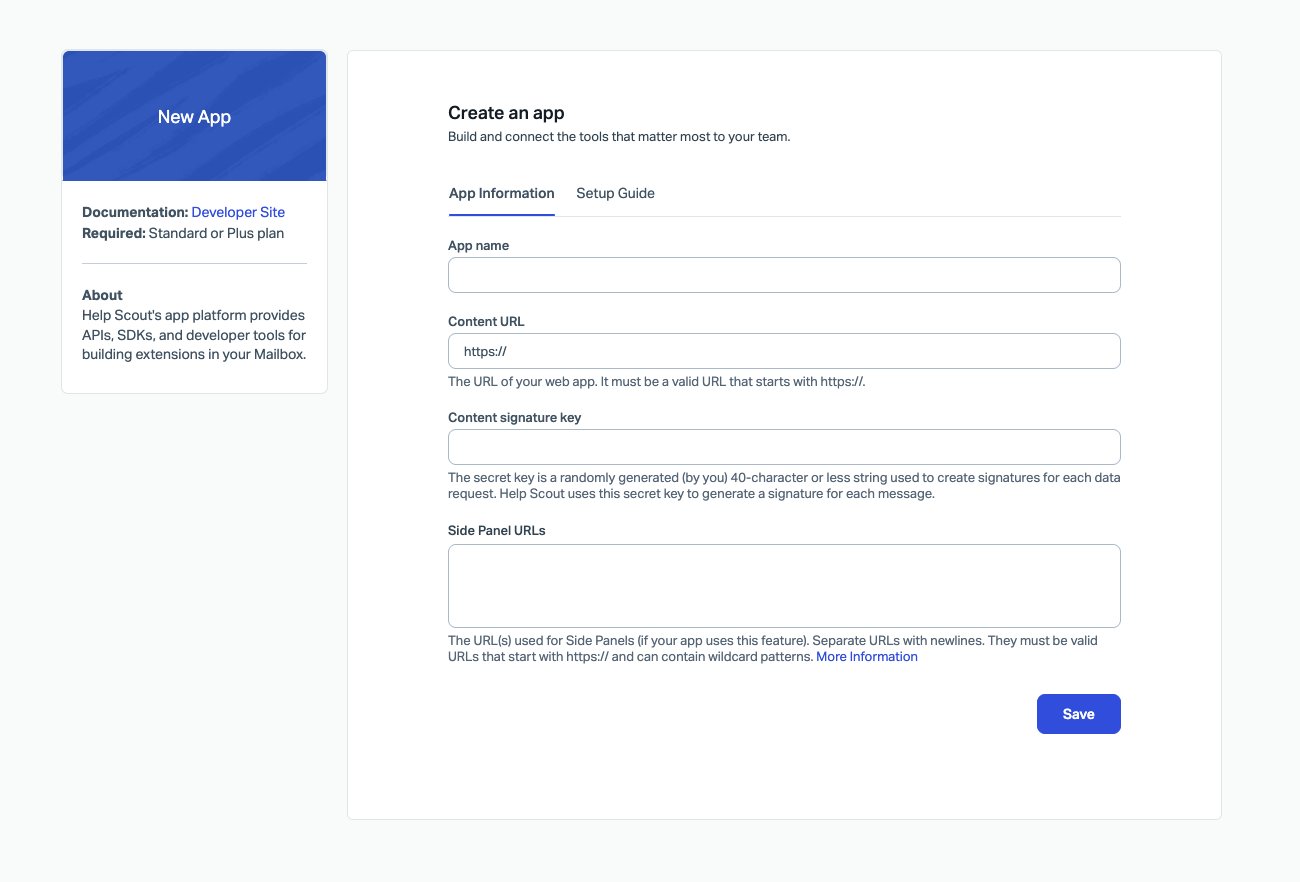
You also need to work with your Opereit Product Manager, who gives you two
values in step 3: the Content URL and the Content signature key.
1
Create an API key
Follow the API keys guide to create an API key named
Help Scout. Keep the Key ID and Key Password at hand for step 3.2
Create the app that lets Opereit read the messages
Opereit reads the messages of a conversation to find its shipments and
fill in the claim for you. For that, create an app in Help Scout. An
administrator does this once.Click the Settings gear in the top bar, then My Apps in the
Account menu.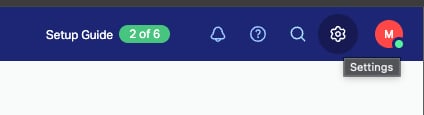
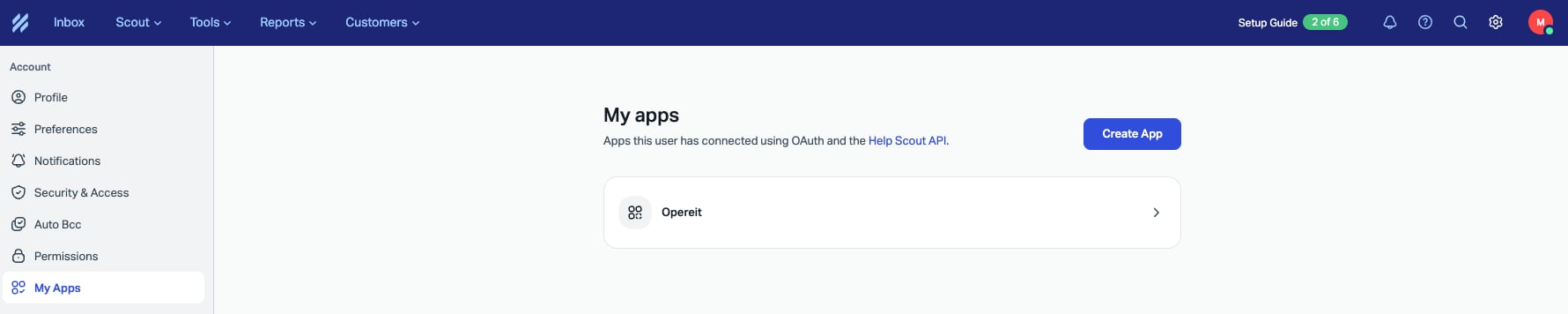
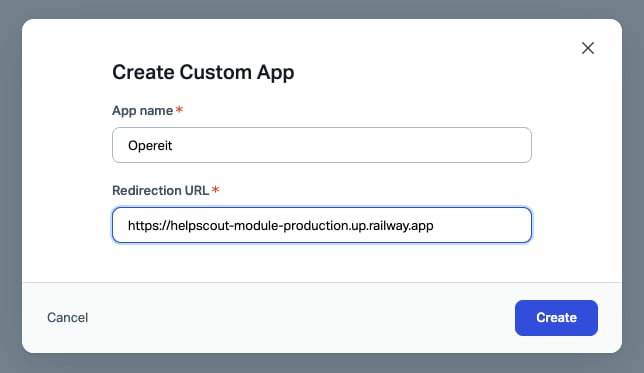
Opereit. Redirection URL is required, but Opereit
doesn’t use it. Enter any valid https:// address, for example
https://helpscout-module-production.up.railway.app. Then click Create.Opereit reads conversations with the access of the person who created the
app. Create it with a user who will stay in your team and keep access to
the mailboxes that use Opereit. If that user is removed or loses access,
Opereit can no longer read the conversations.
3
Send the keys to Opereit and get the connection values
Contact your Opereit Product Manager and send them, through a secure
channel:
- The Key ID and Key Password from step 1.
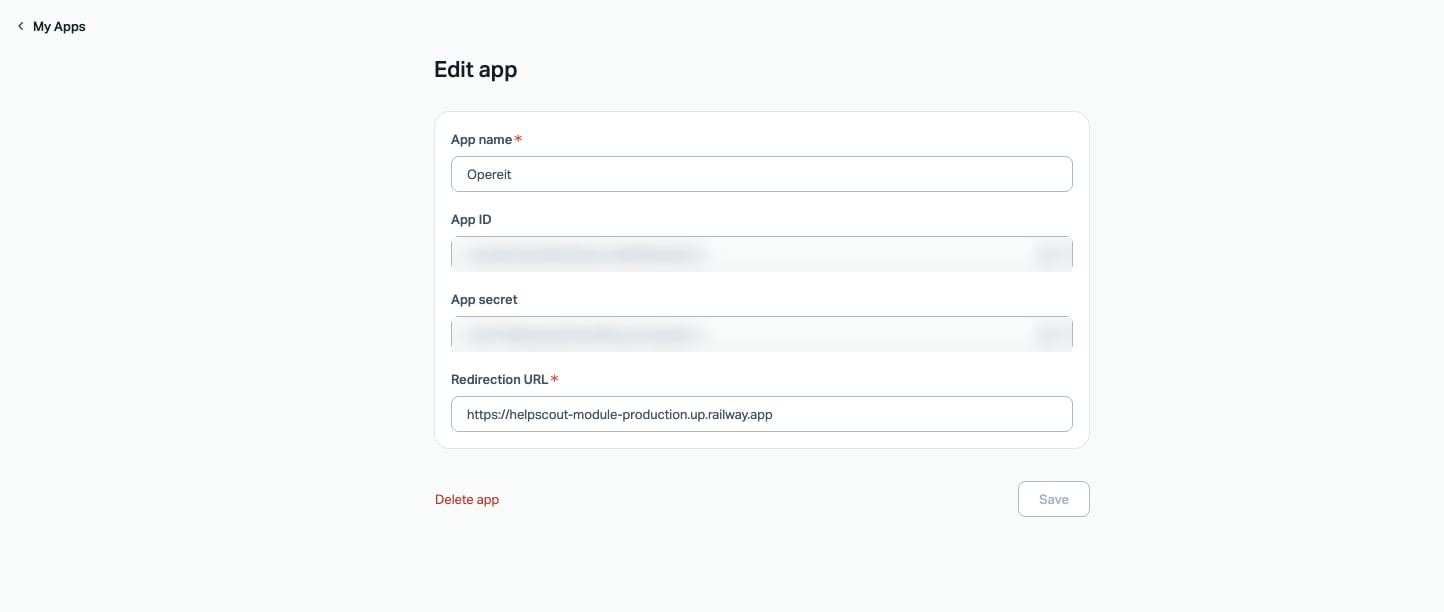
- The App ID and App secret from step 2.
- Content URL: the address of the connector for your account. It ends
in
/load?connection=hsc_…. - Content signature key: the key that proves to Opereit that a request comes from your Help Scout.
4
Add the Opereit app to your sidebar
In Help Scout, open Workspace, then Apps, and click Create.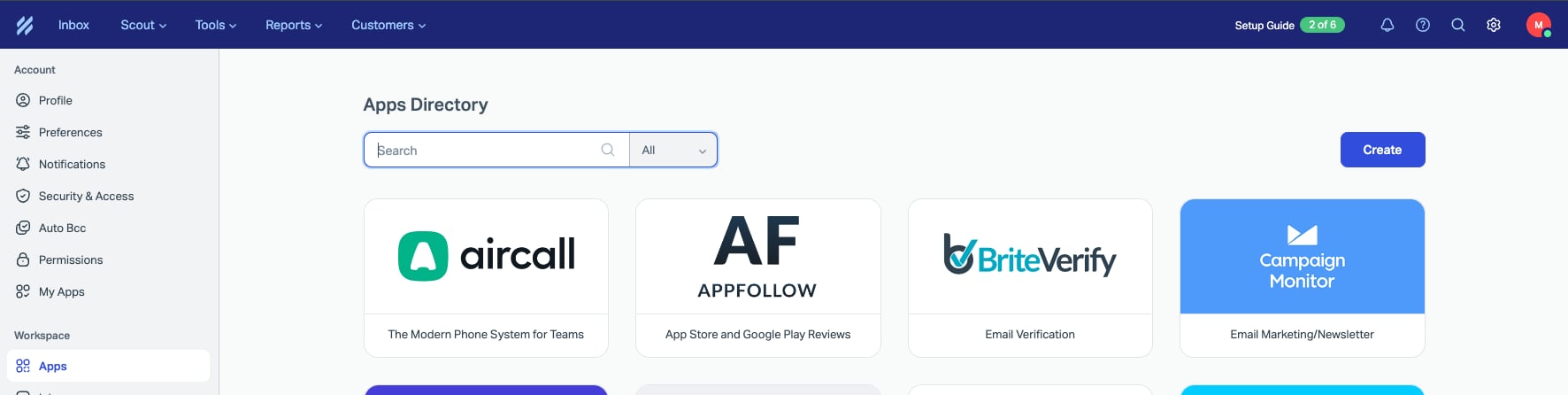
5
Start filing claims
You’re done. Open a conversation in one of those mailboxes and look for the
Opereit card in the right sidebar. If the conversation mentions a
shipment that already has a claim, the claim appears under Claims for
this conversation. Click New claim to open the claim form, filled in
with what Opereit can read from the conversation.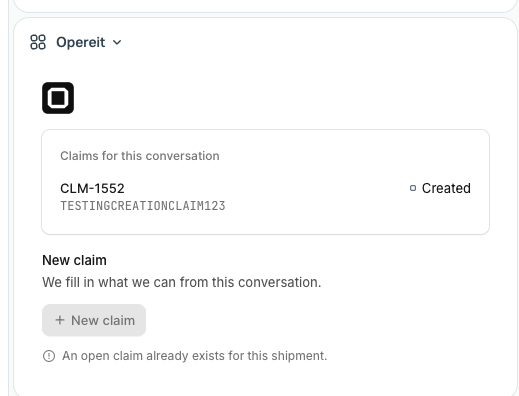
Troubleshooting
The Opereit card shows an error instead of the claims
The Opereit card shows an error instead of the claims
Help Scout and Opereit don’t agree on the connection. Check that the
Content URL is exactly the one you received, with nothing added or cut
off, and that the Content signature key has no extra spaces. If both
are right, contact your Opereit Product Manager.
The claim form isn't filled in, or linked claims don't show up
The claim form isn't filled in, or linked claims don't show up
Opereit may not be able to read the conversation. Check that the user who
created the app in step 2 is still active and has access to the mailbox. If
the App ID or the App secret changed, send the new values to your
Opereit Product Manager.
An open claim already exists for this shipment
An open claim already exists for this shipment
Opereit allows one open claim per shipment, so New claim is disabled.
Contact Opereit support if you need to fix the earlier claim.
Opereit rejects the connection
Opereit rejects the connection
The API key is wrong or has been revoked. Create a new key as described in
the API keys guide and send the new Key ID and
Key Password to your Opereit Product Manager.