

The connector is currently private, and an administrator of your Freshdesk account
must install it. Before you start, get the connector package,
opereit-freshdesk-module.zip, from your Opereit contact.The connector connects to your Opereit account with an API key. Create one
first.
YOUR-COMPANY with your own Freshworks account name, the part before .freshdesk.com in your Freshdesk address.
1
Create an API key
Follow the API keys guide to create an API key. Keep the Key ID and Key Password at hand for step 8.
2
Open your Freshworks developer account
The administrator goes to the developer account for your Freshworks
account:Open the Custom Apps tab and click Create New App.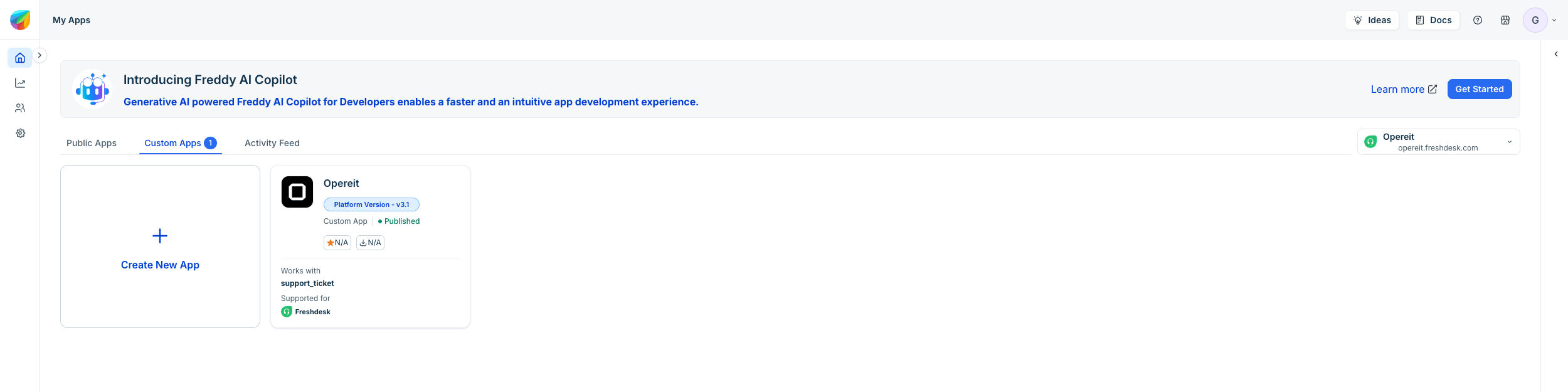
3
Upload the connector
Since the connector is private, it won’t appear in the Freshworks Marketplace.
Upload it as a custom app instead: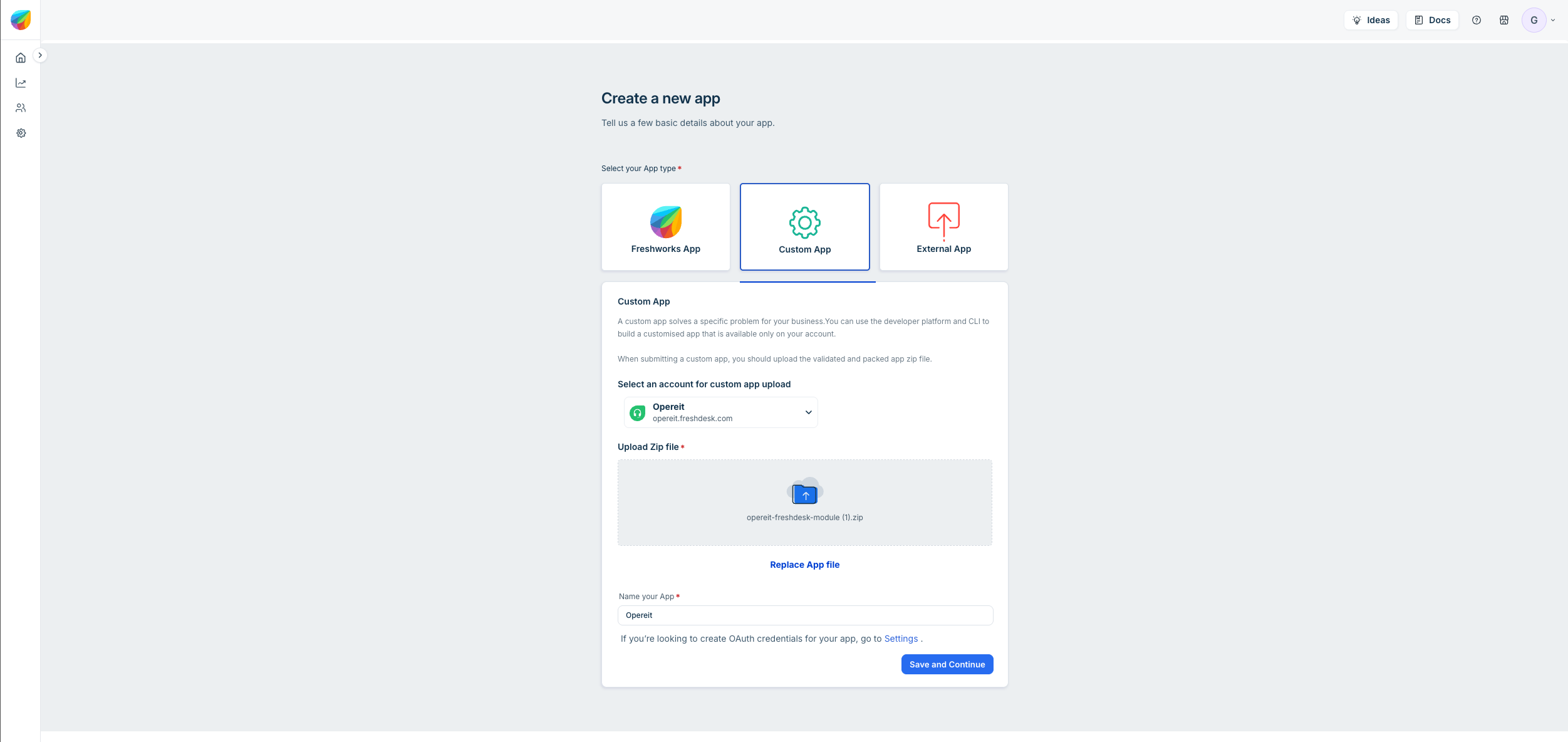
- Select Custom App.
- Select the account to install it on. Choose the main Freshdesk account your team uses.
- Upload
opereit-freshdesk-module.zip. - Name the app Opereit.
- Click Save and Continue.
4
Fill in the app information
Freshworks saves the app as a Draft. On the App information tab,
enter the details below, then click Save and Continue.NameOverviewShort Description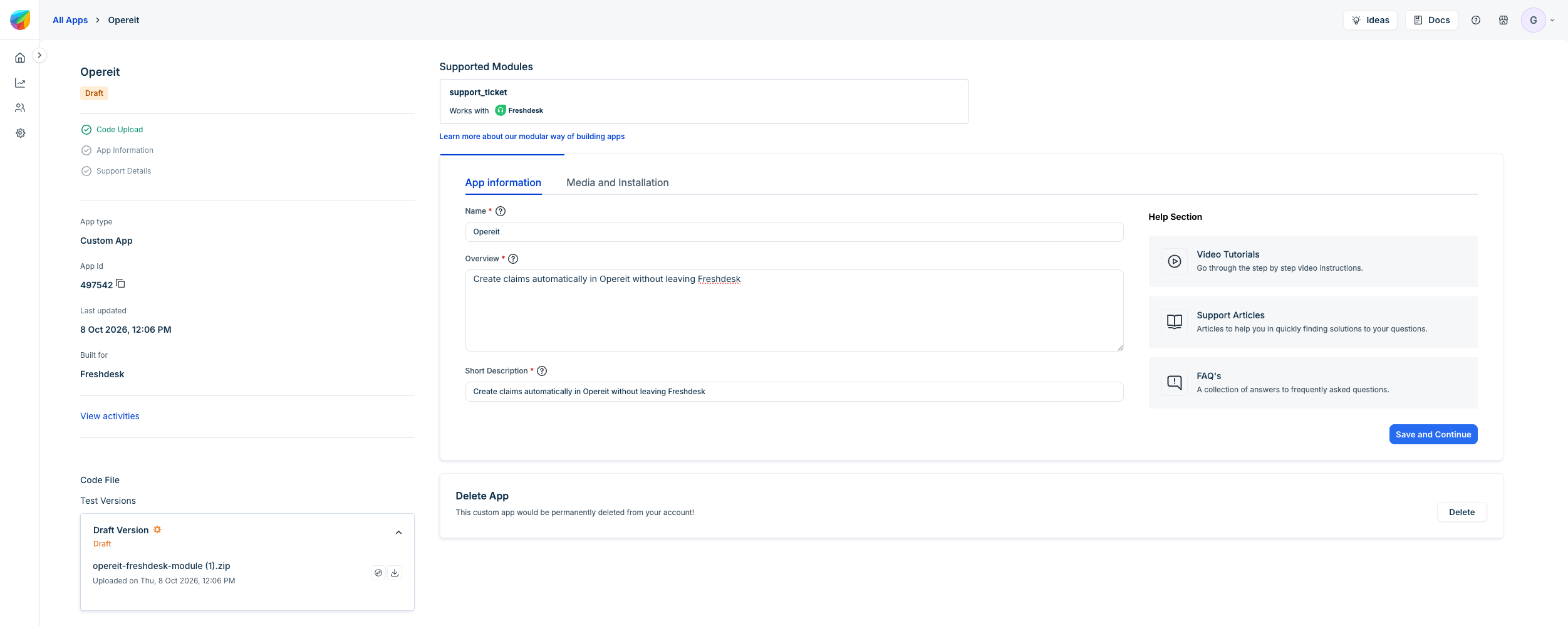
5
Add the logo
On the Media and Installation tab, click Replace App icon and upload
the Opereit logo.Download the Opereit logo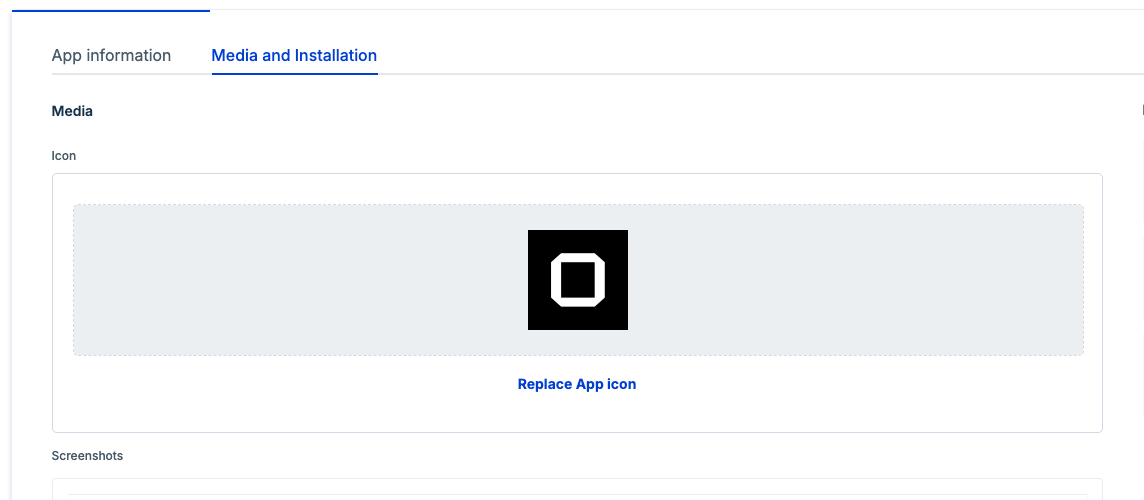

6
Add the support details and publish
Scroll down to Support Details. Enter 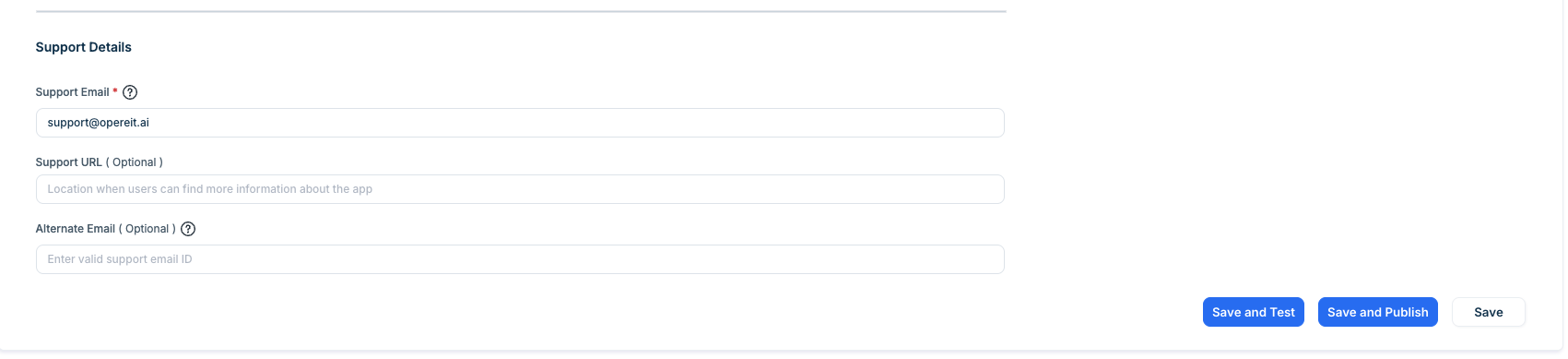
support@opereit.ai as the
Support Email. The other fields are optional.Click Save and Publish. Freshworks publishes the app internally, for
your account only.7
Install the connector in Freshdesk
Go to the apps management page of your Freshdesk account:Find Opereit in the list of custom apps and click Install.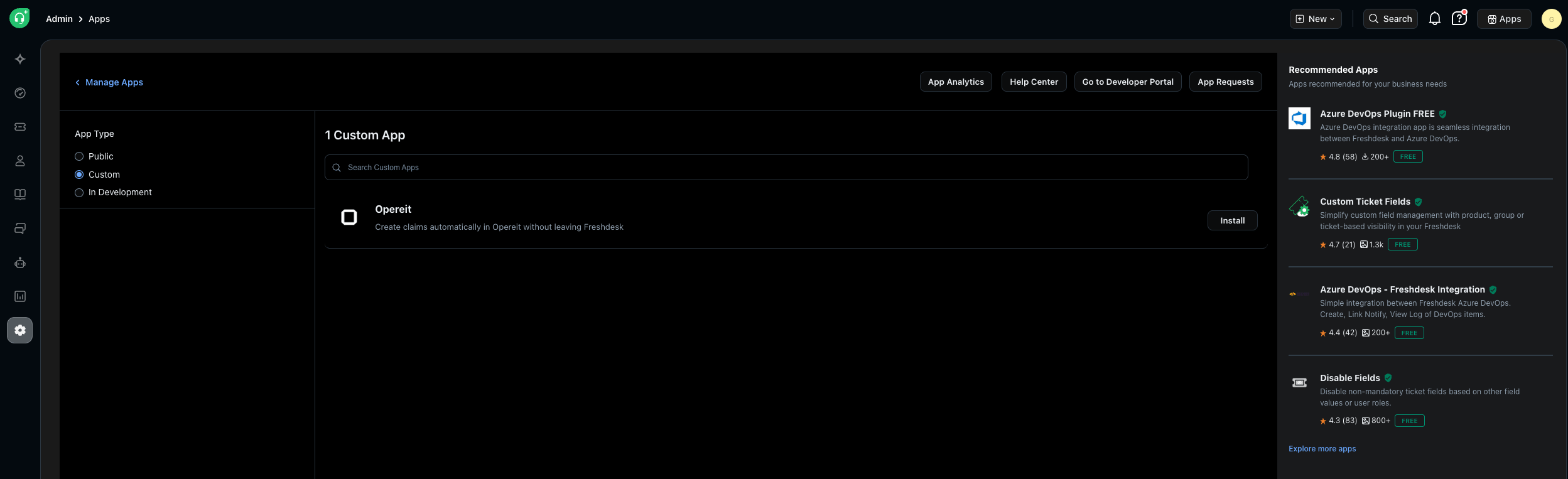
8
Enter the API key
On the Configuration page, enter the API Key ID and the API Key
Password you created in step 1, then click Install.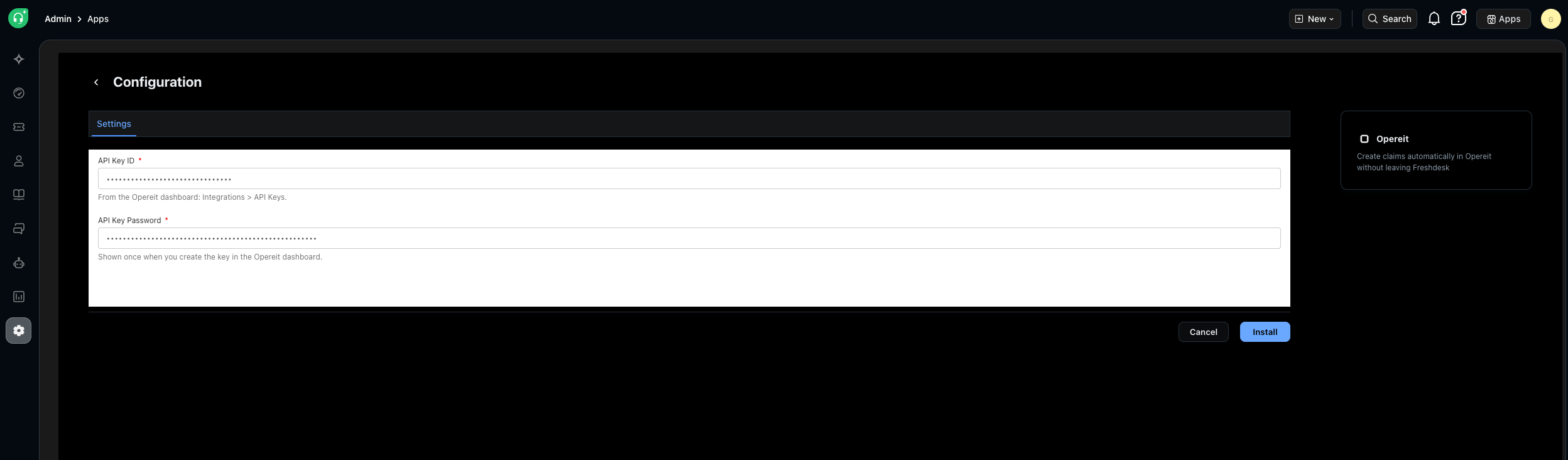
9
Start filing claims
You’re done. Open any ticket and look for the Opereit card in the right
sidebar. Click Create a claim. The claim form opens in a window.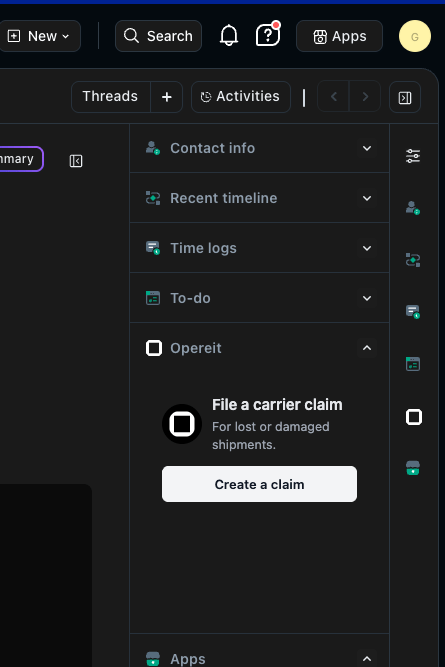
File a claim
Fill in the sections, then click Create claim. Fields marked with * are required. Create claim stays disabled until all of them are filled in, and a note above the buttons tells you why.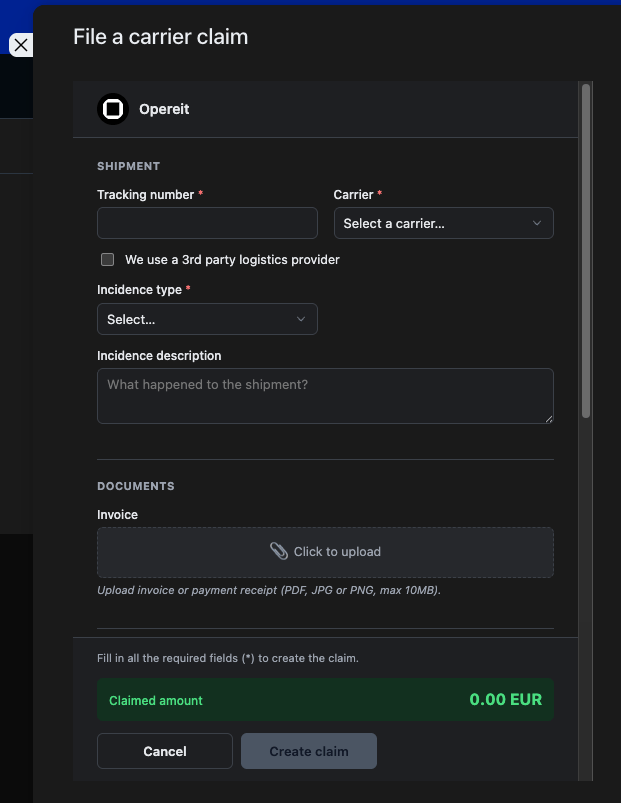
Shipment
Documents
Items
Choose the Currency, then add up to 3 items. Each item has a Description, a Quantity and a Unit price. Opereit calculates each item’s total and the Claimed amount for you.Origin and destination
After you create the claim
Opereit creates the claim automatically and uploads your documents. The window shows the new claim number. Click Create another claim to file another one, or Close to return to the ticket.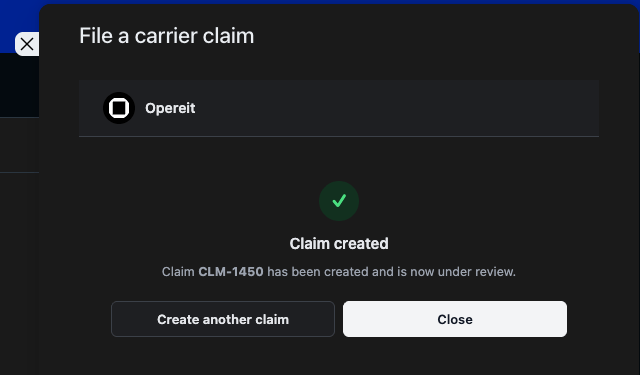
Troubleshooting
The API key is wrong or has been revoked. Create a new key as described in
the API keys guide, then update it in
Freshdesk:
-
Go to the apps management page of your Freshdesk account:
-
Find Opereit, click Settings, then Edit settings.
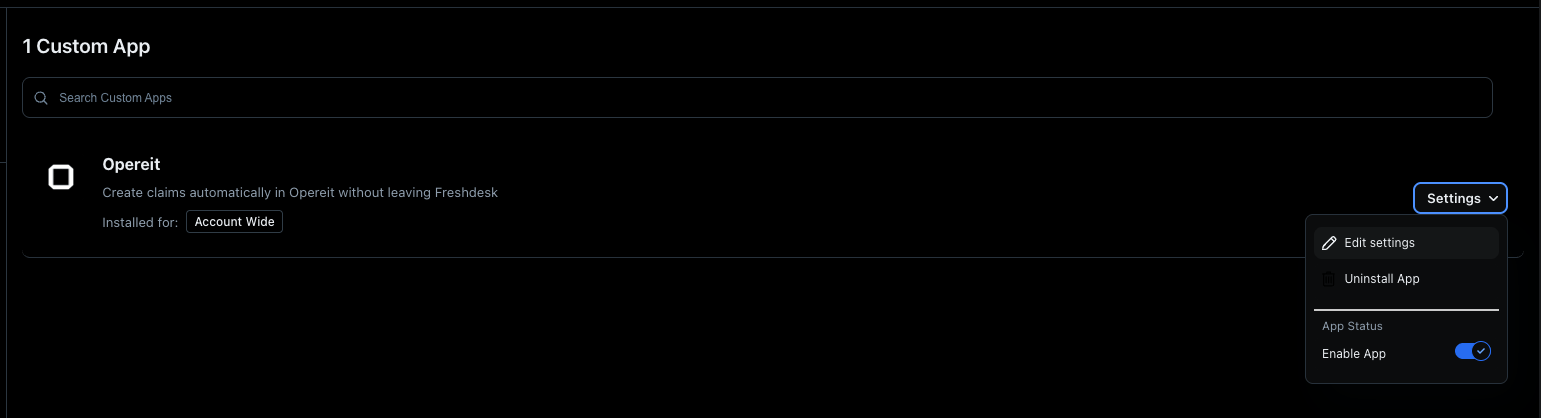
- Enter the new API Key ID and API Key Password, as in step 8 of the installation, and save your changes.
An open claim already exists for this shipment
An open claim already exists for this shipment
Opereit allows one open claim per shipment. Contact Opereit support if you
need to fix the earlier claim.