

What you need
- Access to the Opereit dashboard.
Create an API key
1
Open the API Keys page
Log in to the Opereit dashboard and go to
Integrations > API Keys.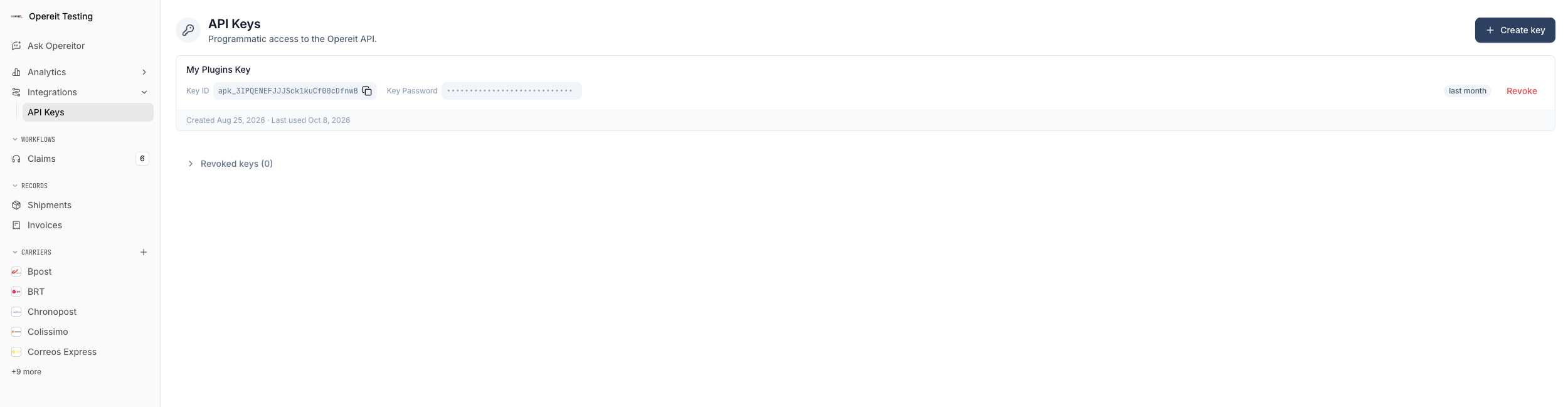
Don’t see API Keys in the menu? Ask your Opereit contact to enable it
for your account.
2
Create the key
Click Create key, enter a Key name, and click Create key again.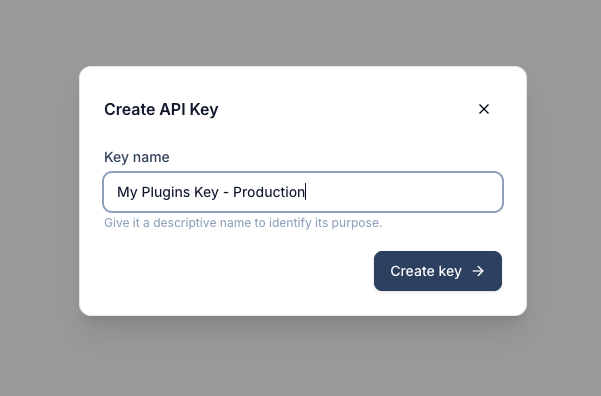
Zoho Desk, Freshdesk or
Production API. That way you can revoke one key later without affecting
the others.3
Copy the Key ID and Password
Copy the ID and the Password. Opereit shows the password only once,
so keep it somewhere safe, such as a password manager. The ID stays visible
on the API Keys page.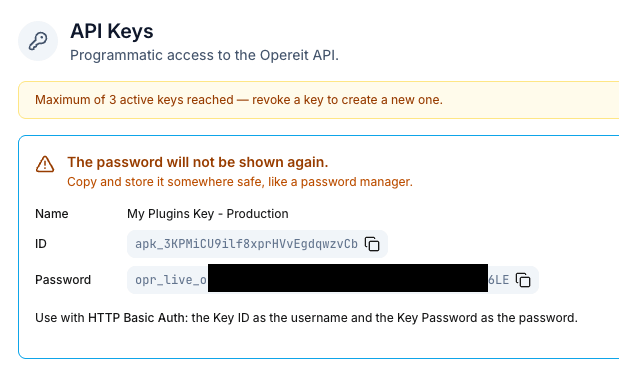
An organization can only have a limited number of active keys. If the dashboard
says you’ve reached the maximum, revoke a key you no longer use to make room.
Use your key
Opereit keys use HTTP Basic Auth: the Key ID is the username and the Key Password is the password.The API
Send the key with every API request.
Zoho Desk
Enter the key when you install the connector.
Freshdesk
Enter the key when you install the connector.
Manage your keys
- Replace a key: create a new key, update it wherever the old one is used, then revoke the old one.
- Revoke a key: click Revoke on the key in Integrations > API Keys. Whatever uses it stops working until you give it a new key.
- Check usage: each key shows when it was created and when it was last used.